Backing up and restoring your data
This article helps you keep a copy of your data and restore it if needed.
Steps
- Open Settings, Account, Backup & restore.
- Click "Export account data" to download one file with everything in your account: ingredients, recipes, components, orders, customers, suppliers, prices, settings and production history.
- "Restore from backup…" replaces everything in the account with a backup file. You'll be asked to confirm first. If anything goes wrong part way, nothing is changed.
Set "Remind me to back up every" to get a regular reminder. It also shows when you last backed up.
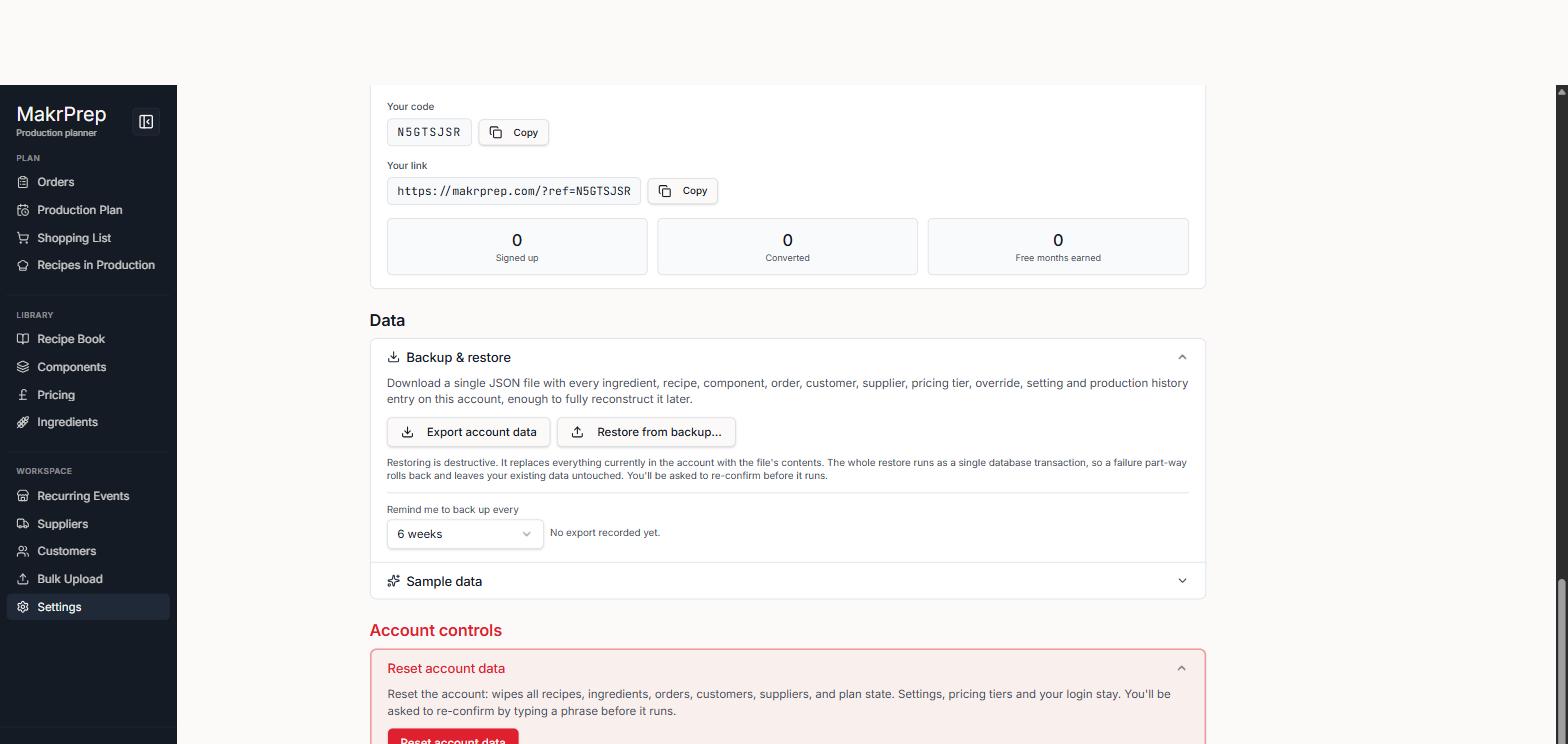
Settings, Account, Backup & restore with the Export and Restore buttons and the reminder setting
Common issues
- Restoring doesn't merge: it replaces what's there. Export a fresh backup before restoring an older one if you want to keep both.