Switching between light and dark mode
This article helps you change MakrPrep to a dark screen, or back to light.
Steps
The quickest way is the switch at the bottom of the menu: it says "Dark mode" when you're in light mode, and "Light mode" when you're in dark. On a phone it's under More.
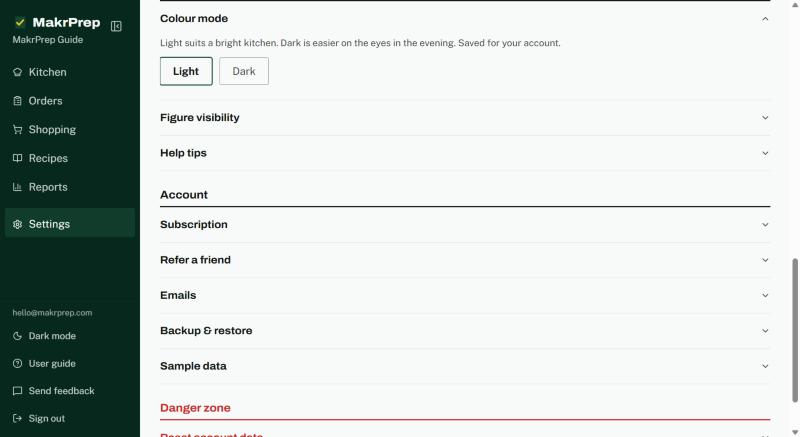
The bottom of the menu with the Dark mode switch - Or open Settings, Appearance, Colour mode and choose Light or Dark.
What to expect
MakrPrep starts in light mode. Your choice is saved on your account, so it's the same on every device you sign in on. It doesn't follow your phone or computer's own dark mode setting.
The website stays light, and the prep sheet prints black on white.
Common issues
- I used to have a coloured theme: the pink, red, blue, green and amber themes have been replaced by light and dark. If you had one of them, you're now in light mode.