Getting around MakrPrep
This article shows you how the menu is laid out and where each screen lives.
Steps
The menu on the left groups related screens. Pick one and its screens appear as tabs along the top of the page.
- Kitchen: Production plan and Recipes to prep.
- Orders: Orders, Repeat orders and Customers.
- Shopping: Shopping list and Suppliers.
- Recipes: Recipe book, Components, Pricing and Ingredients.
- Reports.
- Settings.
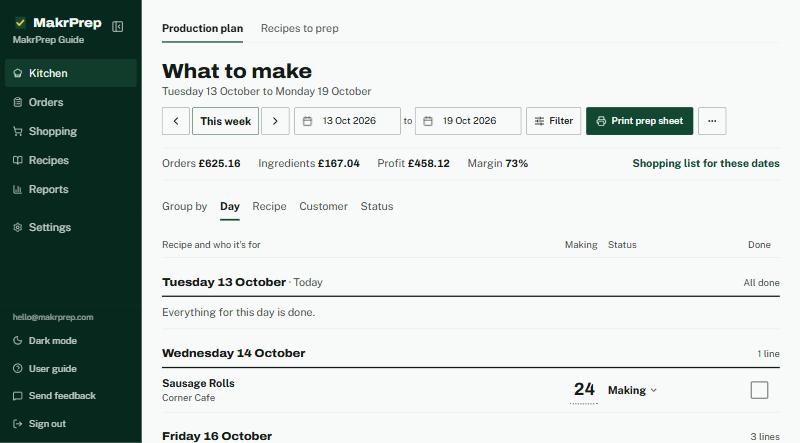
The menu with Kitchen selected and the Production plan and Recipes to prep tabs underlined along the top MakrPrep's name sits at the top of the menu, with your business name underneath. To give the page more room, click the panel button next to it to shrink the menu to icons. Click it again to bring it back. MakrPrep remembers your choice on that device.
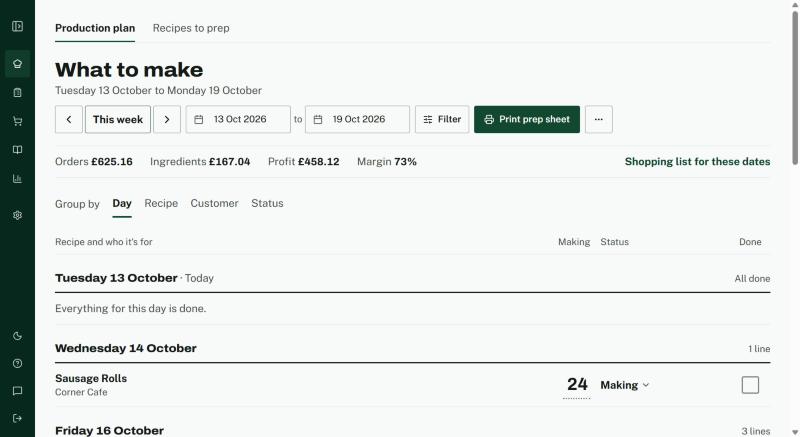
The menu folded to a strip of icons - At the bottom of the menu are your email, the Dark mode / Light mode switch, the user guide, Send feedback and Sign out.
- On a phone, the menu moves to a bar along the bottom with Kitchen, Orders, Shopping and Recipes. Reports, Settings, the user guide, the colour mode switch and Sign out are under More. If a screen has more tabs than fit, swipe the tab row; the one you're on stays in view.
New accounts get a Getting started list at the top of every page: add your ingredients, write a recipe, set your prices, take an order, and see what to make. Each step ticks itself off as you go, and the list disappears once everything is done. Close it with the X if you don't need it. To bring it back, open Settings, Sample data and click "Show welcome guide and checklist".
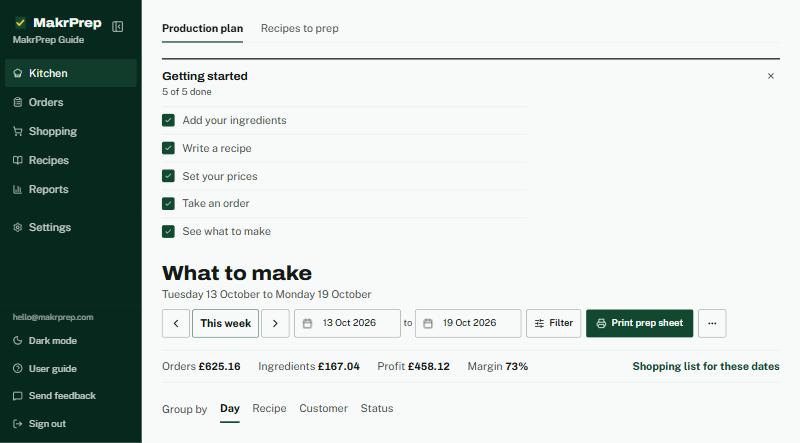
The Getting started list at the top of the page
Most screens open read-only, so you can look things up without changing anything by accident. To change things, use the screen's Edit button (for example "Edit prices and stock" on Ingredients, or "Edit recipe" on a recipe), then Done.
Lists with a left-hand index (Recipe book, Components and Recipes to prep) can fold their index away with the same panel button, so the recipe gets the full width of the screen.