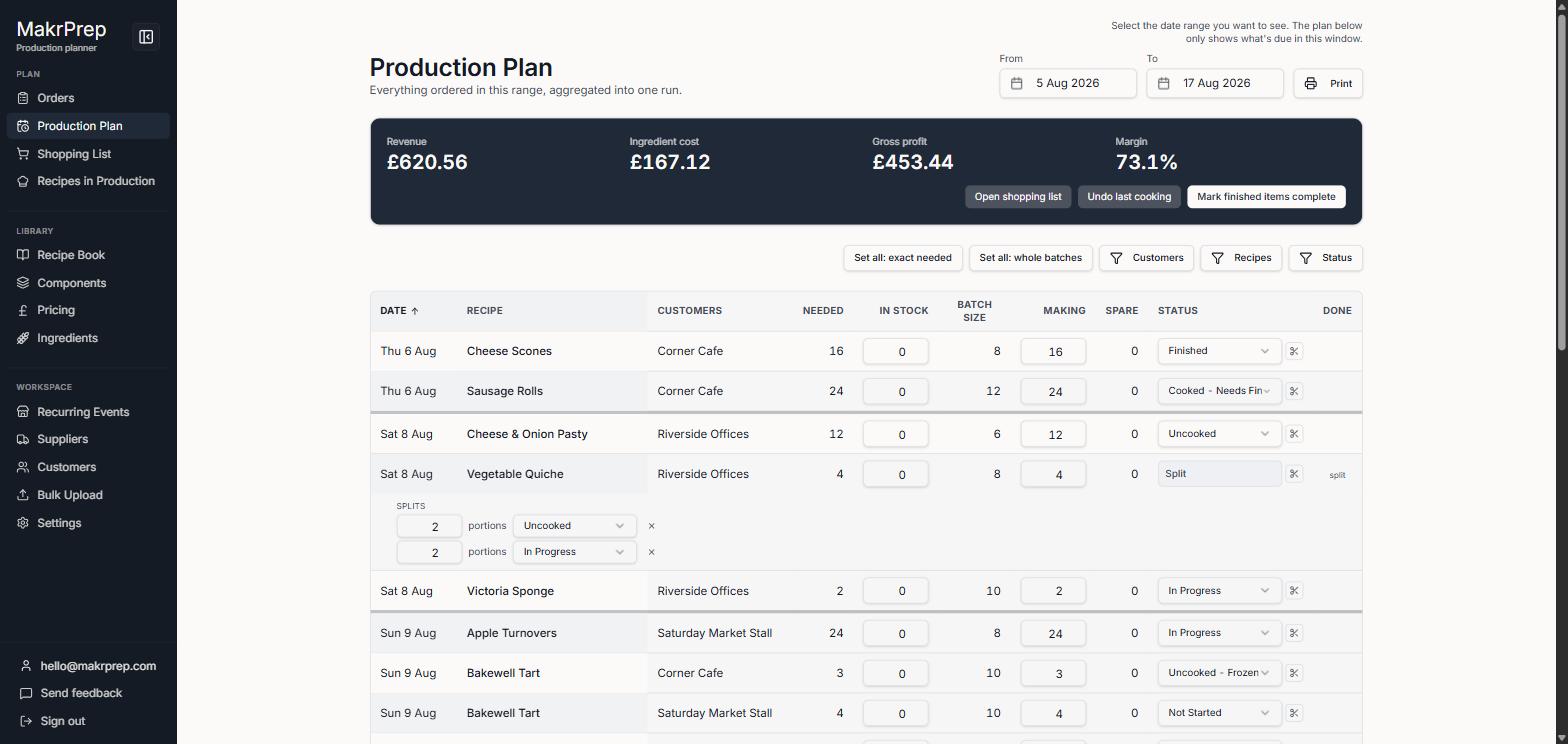
Printing the Production Plan
This article helps you get a printable copy of your Production Plan.
Before you start
Have your Plan's date range and rows set up the way you want them to appear.
Steps
- On the Production Plan, set your date range as usual.
Click Print, next to the date pickers.

Production Plan's Print button next to the From/To date fields - This opens your browser's own print dialog (the same one any web page uses), showing a preview you can print or save as PDF from.
What to expect
The printed page is just the Plan's data table: Date, Recipe, Customers, Needed, In Stock, Batch Size, Making, Spare, Status, and Done columns. The revenue/cost/profit/margin summary panel, the "Set all" and filter buttons, each row's split (scissors) button, and the "Revert all" control are all hidden specifically for print, so what prints is a clean working sheet rather than a screenshot of the full screen.
Common issues
- Nothing seems to happen when I click Print: check whether your browser opened the print preview in a new window or tab rather than over the current one. Some browser/OS combinations do this.
- I wanted the summary numbers on the printout too: that panel is intentionally left off the print version. Note the revenue/cost/profit/margin figures separately before printing if you need them alongside the plan.