Using Recipes to prep
This article helps you work through what you're making, recipe by recipe, with everything scaled to the right amount.
Before you start
Have orders on your Production plan for the dates you pick.
Steps
Open Kitchen, Recipes to prep. The index on the left lists every recipe and component you need for your dates, with how much of each, for example "Rosemary focaccia (6)" or "Focaccia dough (675 g)".
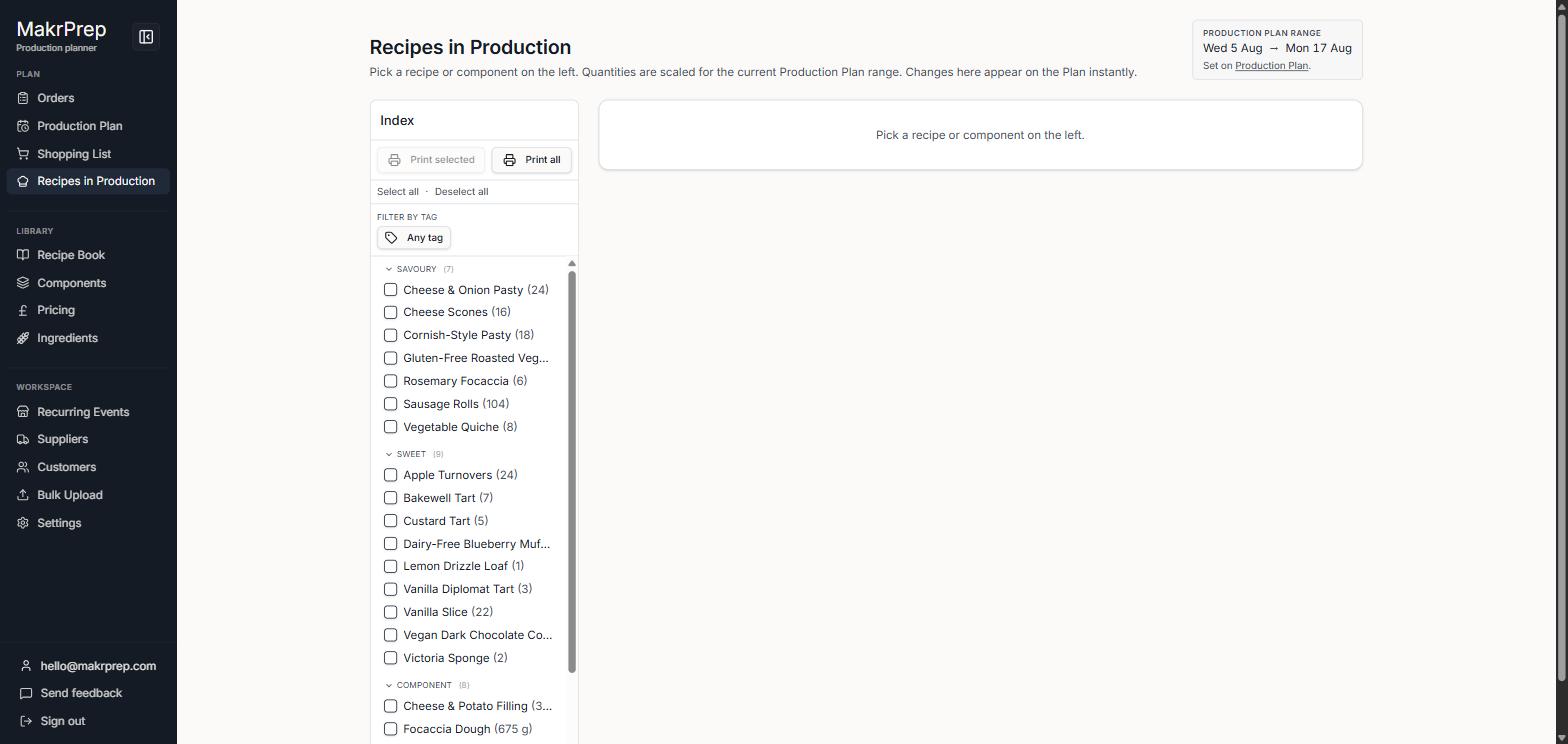
The Recipes to prep index grouped by category, with quantities next to each recipe - Pick one to see its ingredients and method scaled to what you're making, plus which dates and customers it's for. Tick off ingredients and method steps as you go to keep your place.
Lines from overdue orders are labelled Overdue. A green "+N newly ordered" badge means an order grew after you'd already started, so there's an extra line to make.
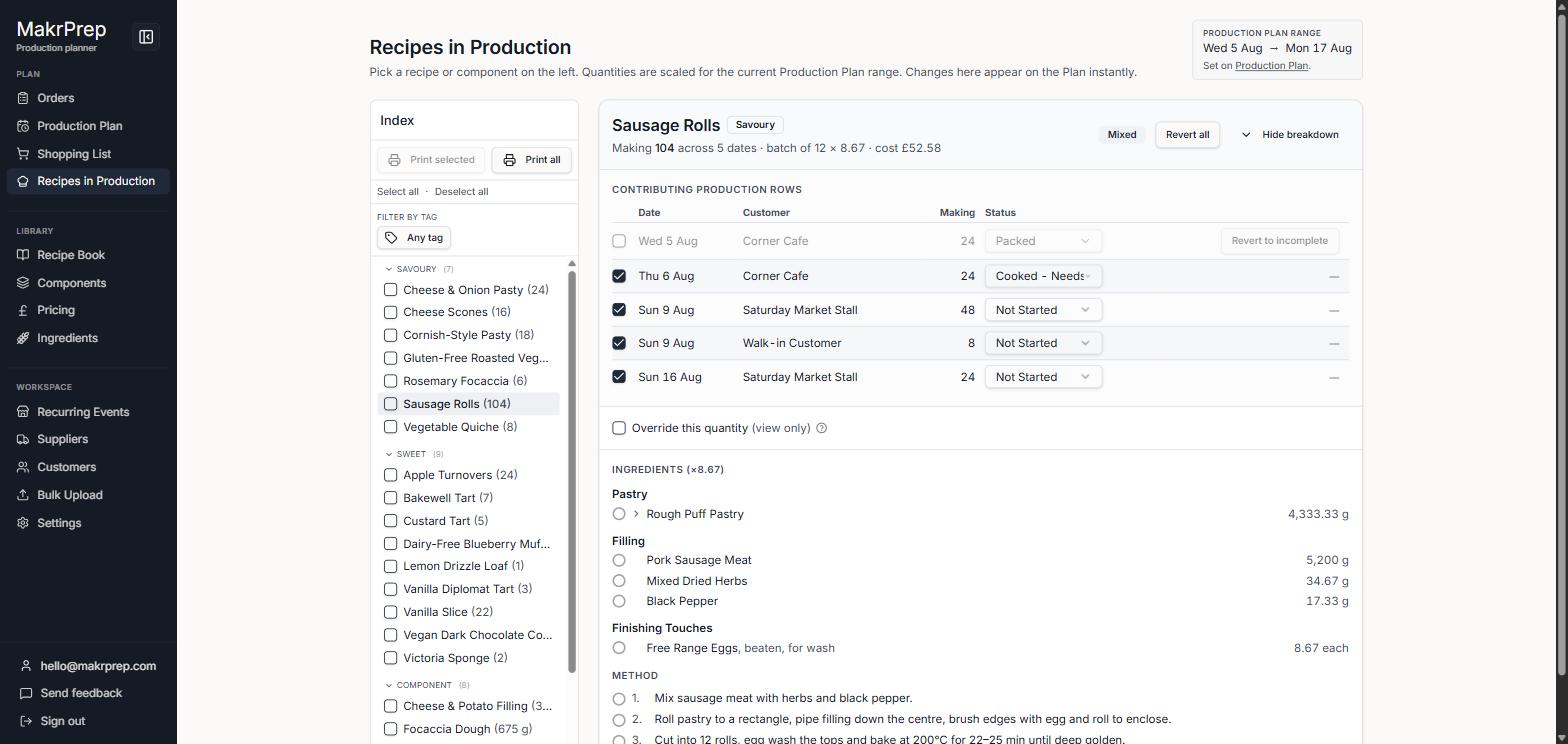
A recipe on Recipes to prep showing the scaled ingredients, method steps and the dates and customers it's for - To see the recipe at a different amount, tick "Override this quantity". This is a preview only and doesn't change your plan.
- Use the checkboxes in the index with Print selected to print scaled recipes for the kitchen. The panel button above the index folds it away to give the recipe more room.
- Components (like a dough used in several recipes) show the total you need across all of them, so you make one batch. See "Component pooling".
What to expect
Ticking ingredients and method steps is only to help you keep track. It doesn't change stock. Stock changes when you mark the recipe complete.