Fixing bulk upload issues
This article helps you troubleshoot a bulk upload that didn't go as expected.
Before you start
Have your source file ready to re-check.
Steps
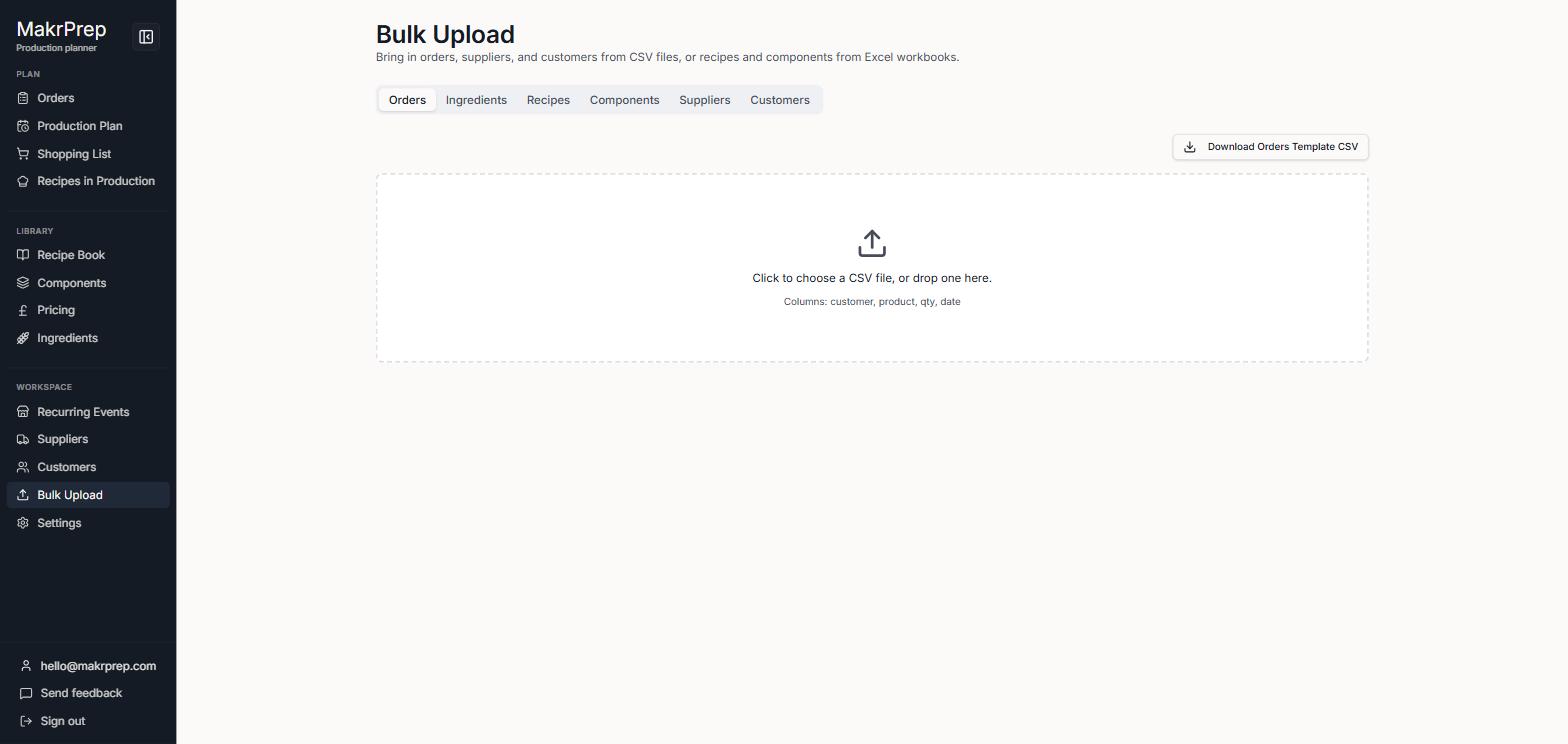
- Wrong file format — Orders, Ingredients, Suppliers, and Customers need CSV; Recipes and Components need an Excel workbook (.xlsx), one recipe or component per sheet.

Bulk Upload → Orders tab: 'Click to choose a CSV file' with a 'Download Orders Template CSV' button 
Bulk Upload → Recipes tab: 'Click to choose a recipes workbook (.xlsx)' — one recipe per sheet, sections Name/Category/Portions, Ingredients, Method, Notes - Rows silently missing — check the post-upload summary report; duplicate names are skipped per row and always show up there rather than failing silently.
- Allergen values rejected — any value not on MakrPrep's recognised allergen list is rejected per row; check ingredient rows against Settings → Allergen standards.
What to expect
Nothing fails invisibly. When an upload finishes, a dialog titled "Upload complete" reports "N of M rows uploaded successfully" (with the correct entity name — row, recipe, supplier, etc. — and singular/plural handled automatically). If any records were skipped as duplicates, a line underneath names each one directly ("These were skipped as they already exist: 'X', 'Y'."). If there are warnings — like rejected allergen values — they're listed separately underneath in their own "Warnings" section.
Common issues
- Re-uploaded a file and got no updates — expected; duplicates are skipped, not merged or updated. Edit existing records directly for changes.
- Recipe/component upload failed entirely — check it's genuinely an .xlsx workbook with one recipe or component per sheet, matching the downloaded template.