Importing from a spreadsheet
This article helps you bring in lots of ingredients, recipes, customers or orders at once instead of typing them in.
Steps
- Click Import (or "Import a spreadsheet") on the Ingredients, Recipe book, Components, Customers or Suppliers page. For orders, use the ... button on Orders, then Import orders.
Download the template for what you're importing and fill it in. Orders, ingredients, customers and suppliers use a CSV file.
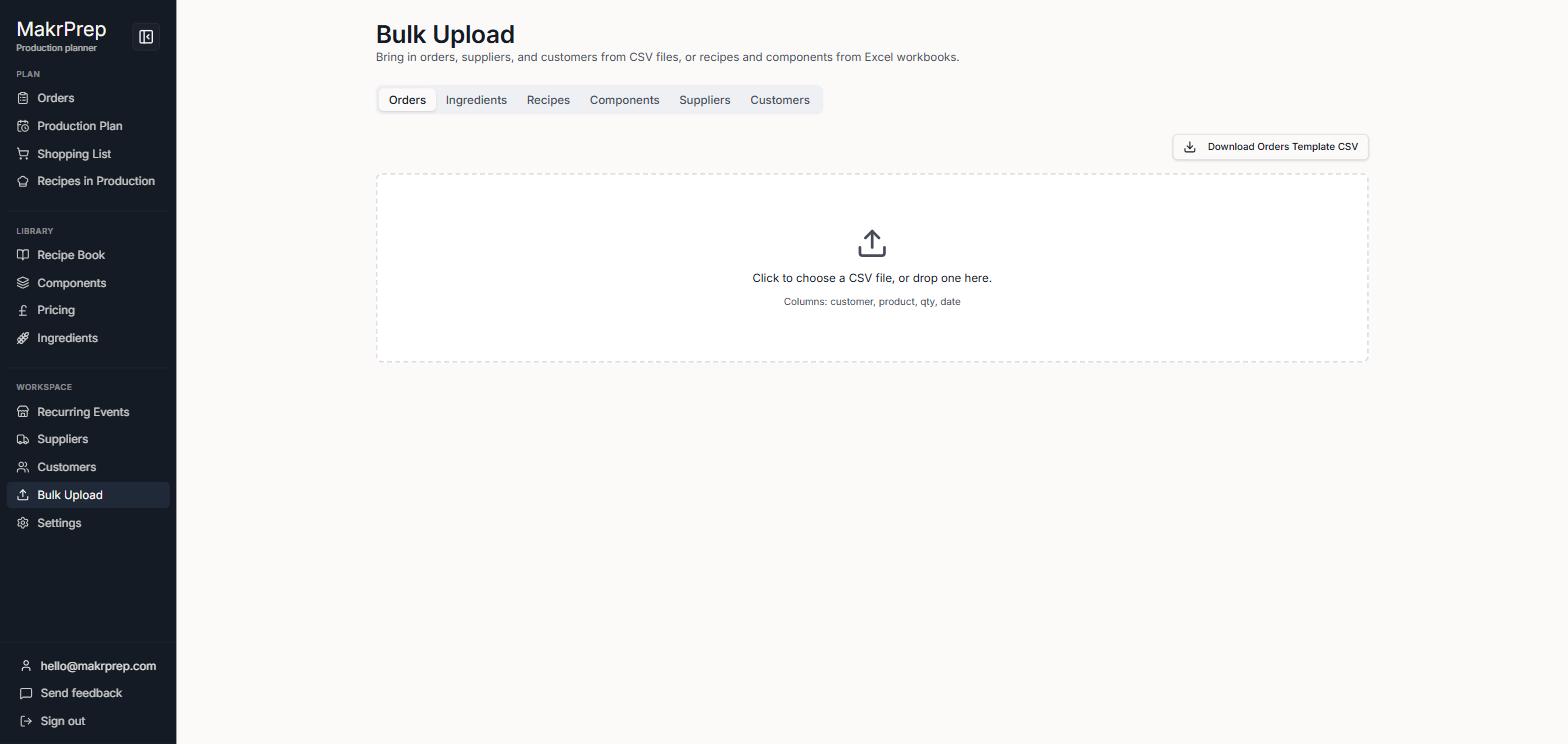
The Import page's Orders tab with the file picker and the Download template button Recipes and components use an Excel file, with one recipe or component per sheet.
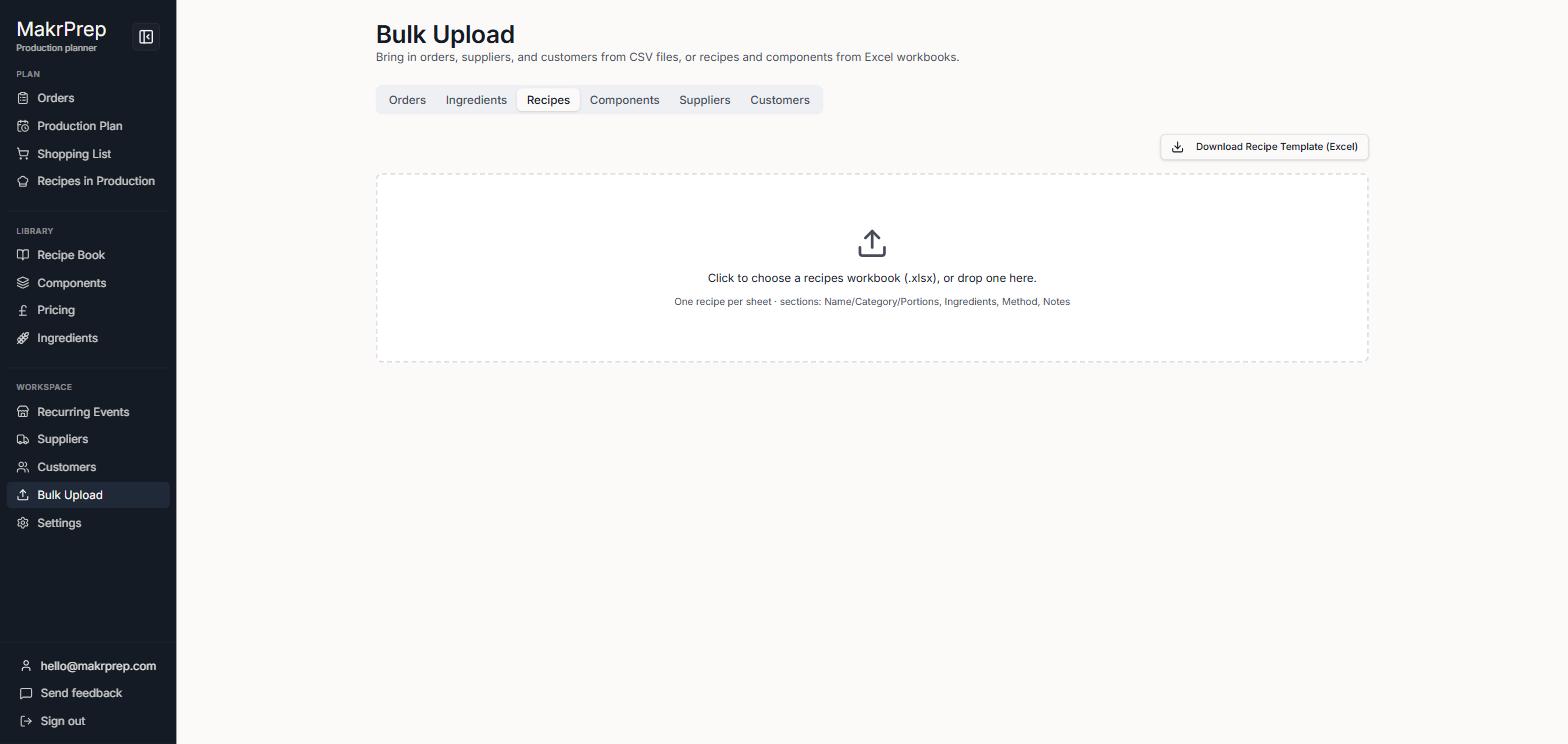
The Import page's Recipes tab with the Excel file picker and the Download recipe template button - Choose your file. A summary shows how many came in, and lists anything skipped and why.
What to expect
Anything with the same name as something you already have is skipped, not changed. Allergens must be ones MakrPrep recognises, or that value is left out with a warning.