Why are ingredients flagged as low stock?
This article helps you understand and adjust a low-stock flag.
Before you start
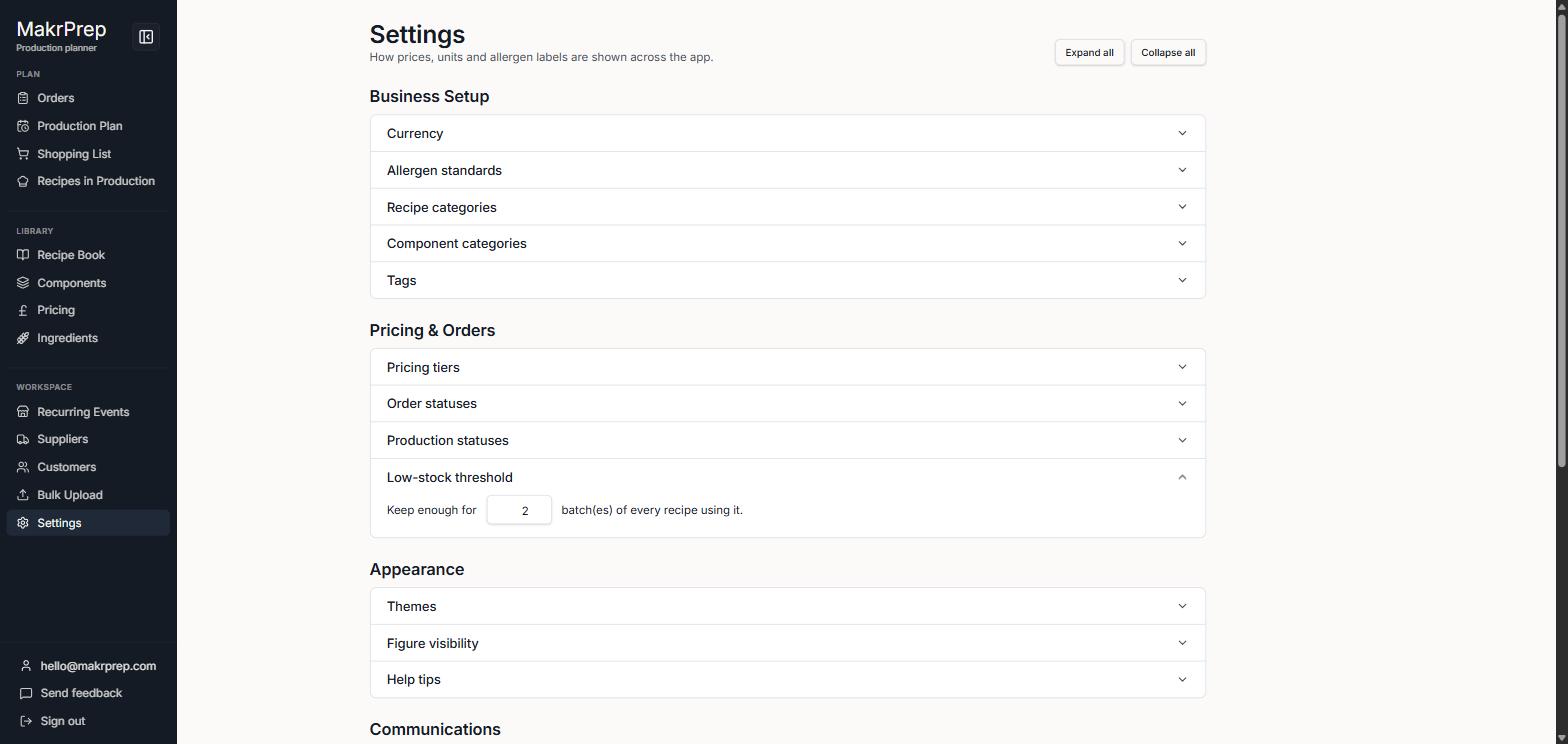
Set your low-stock threshold under Settings → Pricing & Orders.
Steps
- Check the ingredient's current stock against your account's low-stock threshold ("Keep enough for N batch(es) of every recipe using it").

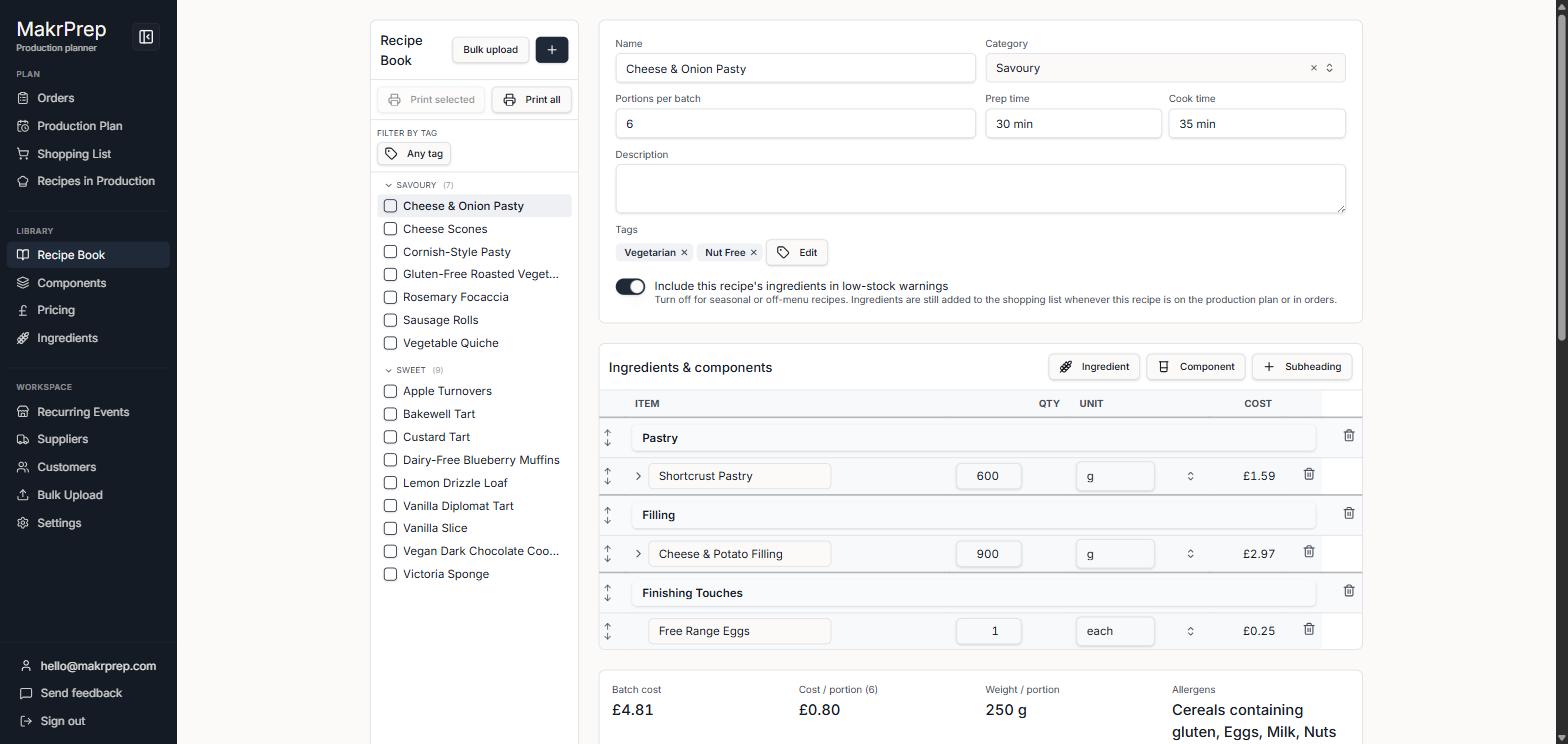
Settings → Pricing & Orders → Low-stock threshold, showing 'Keep enough for 2 batch(es) of every recipe using it' - If a specific recipe or component shouldn't count toward this ingredient's low-stock exposure (e.g. something rarely made), turn off that recipe/component's "Include this recipe's ingredients in low-stock warnings" toggle rather than changing the account-wide threshold.

Recipe editor showing the 'Include this recipe's ingredients in low-stock warnings' toggle, switched on - Stock has a hard floor of zero — deductions never go negative, so a flag reflects genuine shortfall.

Ingredients table with Name, Pack cost, Pack size, Unit, Cost/unit, Stock, Supplier, Allergens, and Detailed ingredients columns
What to expect
Turning off a recipe or component's low-stock-inclusion toggle changes the calculation, not the ingredient's actual recorded stock.
Common issues
- Flagged despite plenty of stock — check whether an unusually large number of recipes/components include it in their low-stock calculation; consider toggling off inclusion for ones that rarely get made.
- Don't confuse the warning-triangle icon next to some ingredient names with a low-stock flag — on ingredients measured "each" (e.g. Free Range Eggs, Lemons), that icon opens a "Weight of 1 [ingredient]" field used to convert between "each" and weight/volume in recipes. It's unrelated to stock level. The real low-stock flag only shows once an ingredient's stock genuinely drops below your threshold — you won't see it on well-stocked ingredients.