Managing orders
This article helps you find, change and keep track of your orders.
Steps
Open Orders. It shows orders due from today for the next week. Change the dates at the top, or set how many days it shows by default in Settings, Pricing and orders, Order dates and overdue.
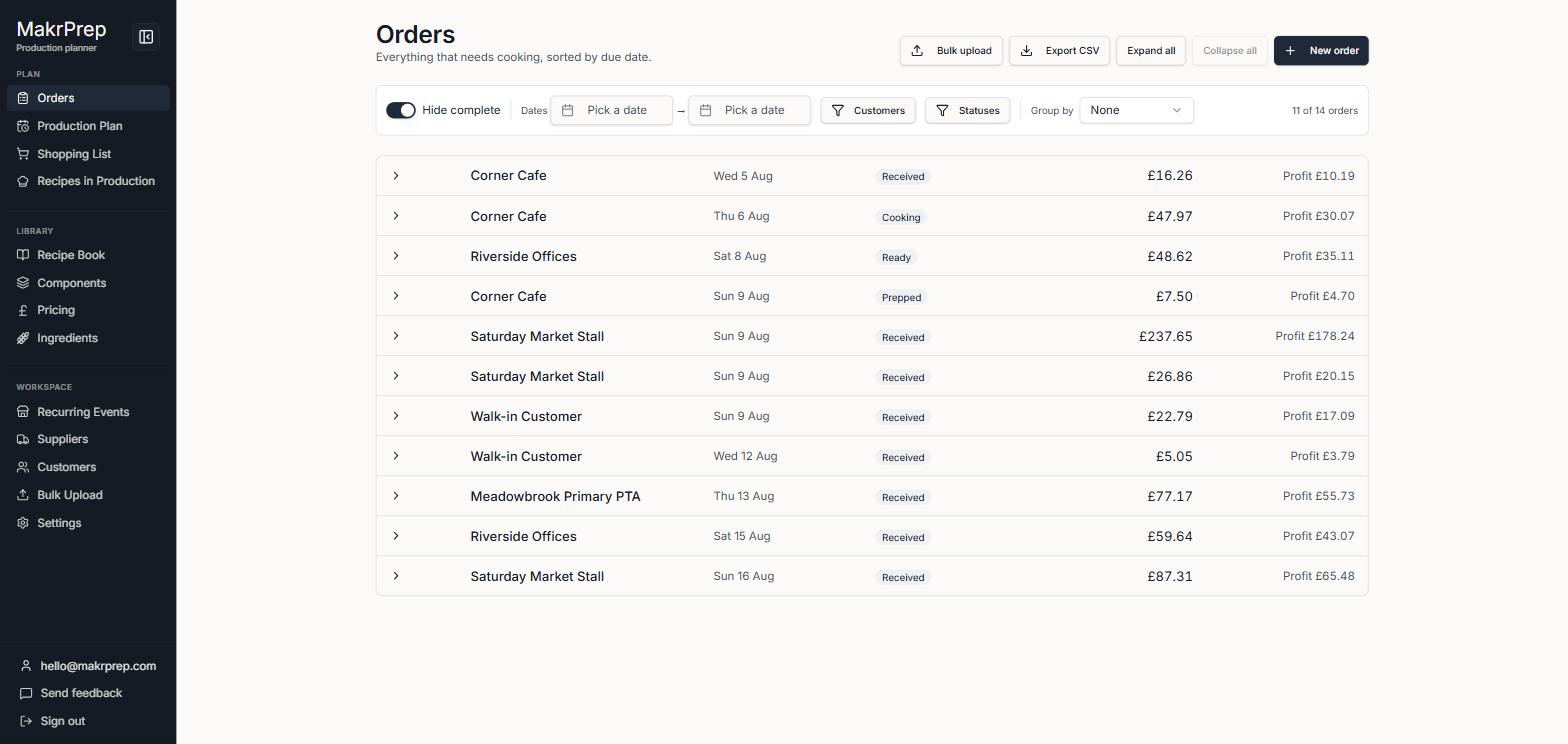
The Orders page with the dates, New order, Filters and the list of orders - Orders that are past their date but not marked complete appear in an Overdue section at the top, so they're never missed.
Click an order to open it. You'll see what's on it with the order total, the customer's standing notes and the notes for this order. You can change its status right there.
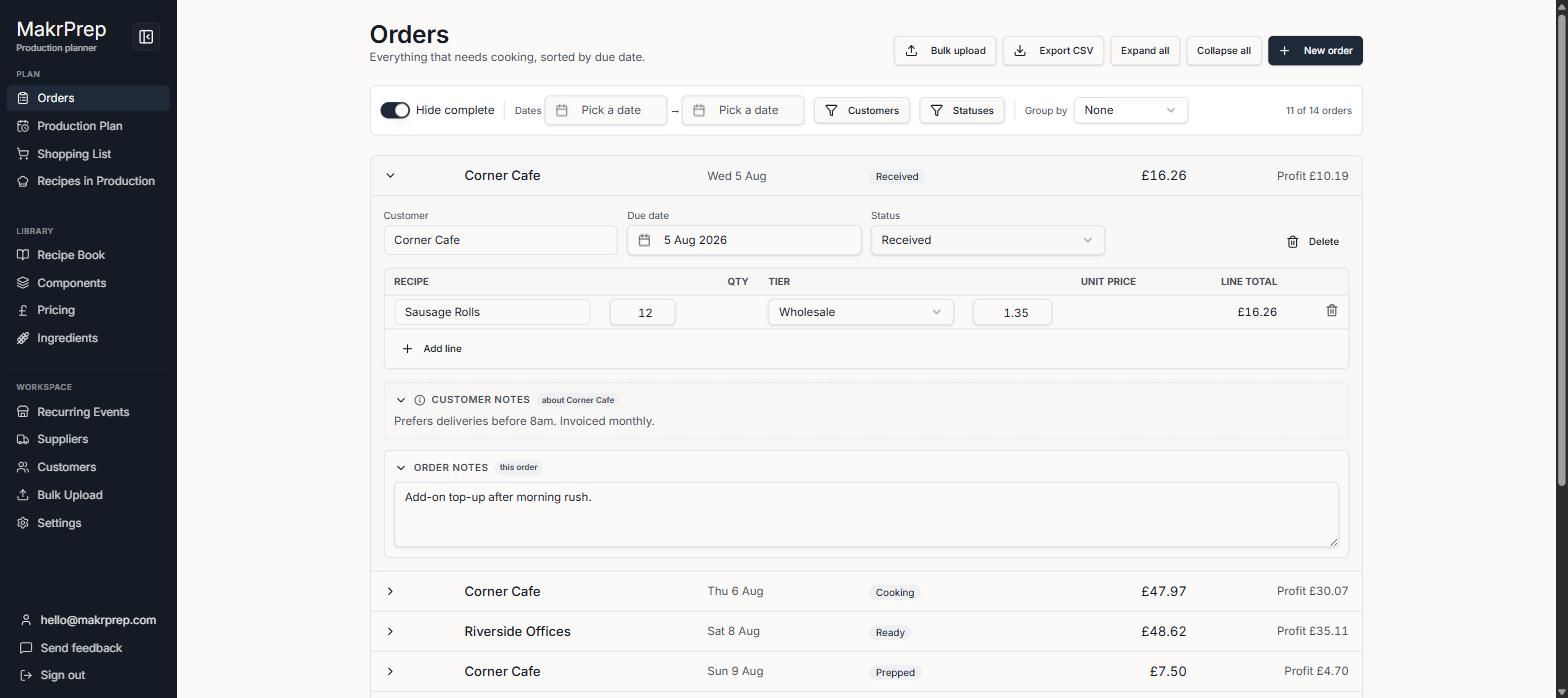
An open order showing its lines, total, status and notes - To change the customer, date, items, quantities, prices or notes, click "Edit order". Click Done when you've finished. Delete order is there too.
To change several at once, tick them and use "Set status to…". If you move orders to a complete status, the stock for anything not yet made is taken out, as if you'd made it. Moving them back puts it back.
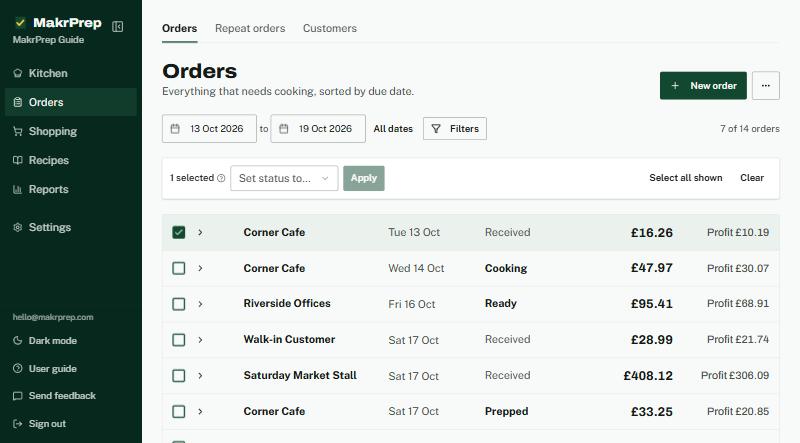
An order ticked, with Set status to and Apply - Use Filters (customers and statuses), Group by, and "Hide complete orders" to narrow the list. The ⋯ button has Import orders and Export CSV.
What to expect
When everything on an order has been made, it moves to Ready by itself. Mark it Delivered (or your own complete status) when it's gone out.
Common issues
- Can't find an order: check the dates at the top, the filters, and whether "Hide complete orders" is on.