Creating your first order and seeing it on the Plan
This article helps you take an order and see what you need to make for it.
Before you start
Have at least one recipe. A customer is optional.
Steps
- Open Orders and click New order.
Pick the customer (or leave it as Walk-in) and the date it's due. To save typing, "Start from a repeat or past order" copies the items from one of their usual orders.
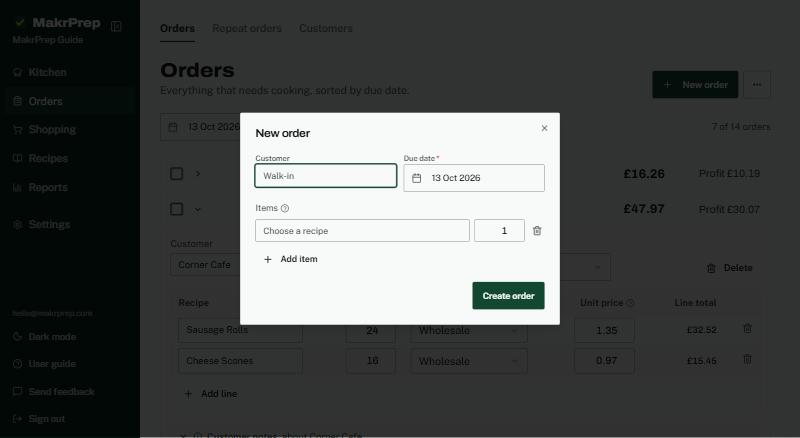
The New order dialog with Customer, Due date, Start from a repeat or past order, and item lines - Add each item and how many. The price fills in from the customer's price list and you can change it for this order. Click Create order.
Open Kitchen, Production plan. Your order now shows as a line saying how many to make, for that date and customer.
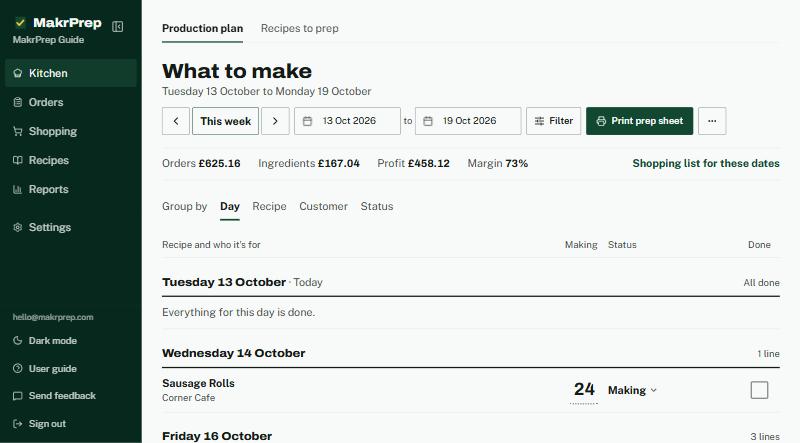
The Production plan showing the new order's recipe, date, customer and quantity
Common issues
- The order isn't on the Plan: check the dates picked at the top of the Plan include the order's due date.